> ## Documentation Index
> Fetch the complete documentation index at: https://docs.ankra.ai/llms.txt
> Use this file to discover all available pages before exploring further.
# Organisation Settings
> Configure general settings, agent behaviour, and AI features for your organisation.
Organisation settings apply to all clusters and resources within your organisation. Only administrators can modify these settings.
## Accessing Organisation Settings
1. Click your profile icon in the bottom left corner of the Ankra platform.
2. Select **Organisation** from the menu.
3. Click **Settings** in the organisation view.
4. Navigate to **General** to access these settings.
***
## General Settings
### Organisation Name
Change the display name of your organisation. This name appears throughout the platform and helps identify your workspace.
Go to **Organisation Settings** → **General**.
Enter a new name in the **Organisation Name** field.
Click **Save Changes** to apply.
Only administrators can rename organisations. Members will see the rename option disabled.
***
## Agent Settings
Configure default agent behaviour for all clusters in your organisation.
### Auto-upgrade Agents
When enabled, cluster agents automatically upgrade to the latest version when available. This ensures your clusters stay up-to-date with security patches and new features.
| Setting | Description |
| ------------ | -------------------------------------------------------------- |
| **Enabled** | Agents upgrade automatically when new versions are released |
| **Disabled** | Agents remain at their current version until manually upgraded |
Individual clusters can opt-out of auto-upgrades in their own settings, even when the organisation setting is enabled. See [Cluster Settings](/platform/cluster-settings) for details.
**How Auto-upgrade Works:**
1. Ankra releases a new agent version
2. The platform detects clusters running older versions
3. If auto-upgrade is enabled (and the cluster hasn't opted out), the agent is upgraded automatically
4. The upgrade process is seamless with minimal disruption
***
## AI Features
Configure AI-powered capabilities for your organisation.
### Proactive AI Insights
When enabled, Ankra's AI continuously scans your clusters and generates insights with root cause analysis, remediation commands, platform-aware actions, and conversation starters. Insights are visible on the dedicated AI Insights page for each cluster, with a detail page, analytics dashboard, and keyboard shortcuts.
Go to **Organisation Settings** → **General** and find the **AI Features** section.
Enable or disable the **Proactive AI Insights** toggle.
When disabled, AI analysis still works on-demand via the AI Assistant (`⌘+J`), but automatic proactive insights are not generated.
| Scenario | AI Insight |
| ------------------- | ------------------------------------------------------------------- |
| Pod crash loop | Identifies common causes like OOM, missing configs, or image issues |
| High resource usage | Suggests scaling recommendations |
| Failed deployments | Analyzes sync errors and provides remediation steps |
| Network issues | Identifies service mesh or ingress misconfigurations |
For full documentation on viewing, filtering, resolving, and analyzing insights, see the [AI Insights](/platform/ai-insights) page.
***
## DNS Records
Organisation admins can create manual CNAME, A, and TXT records under your organisation's own delegated Ankra subdomain (under `ankra.cc` by default, or the [Ankra domain your organisation selected](/concepts/applications#the-preview-url)) - useful for aliasing an add-on's auto-generated hostname to something memorable.
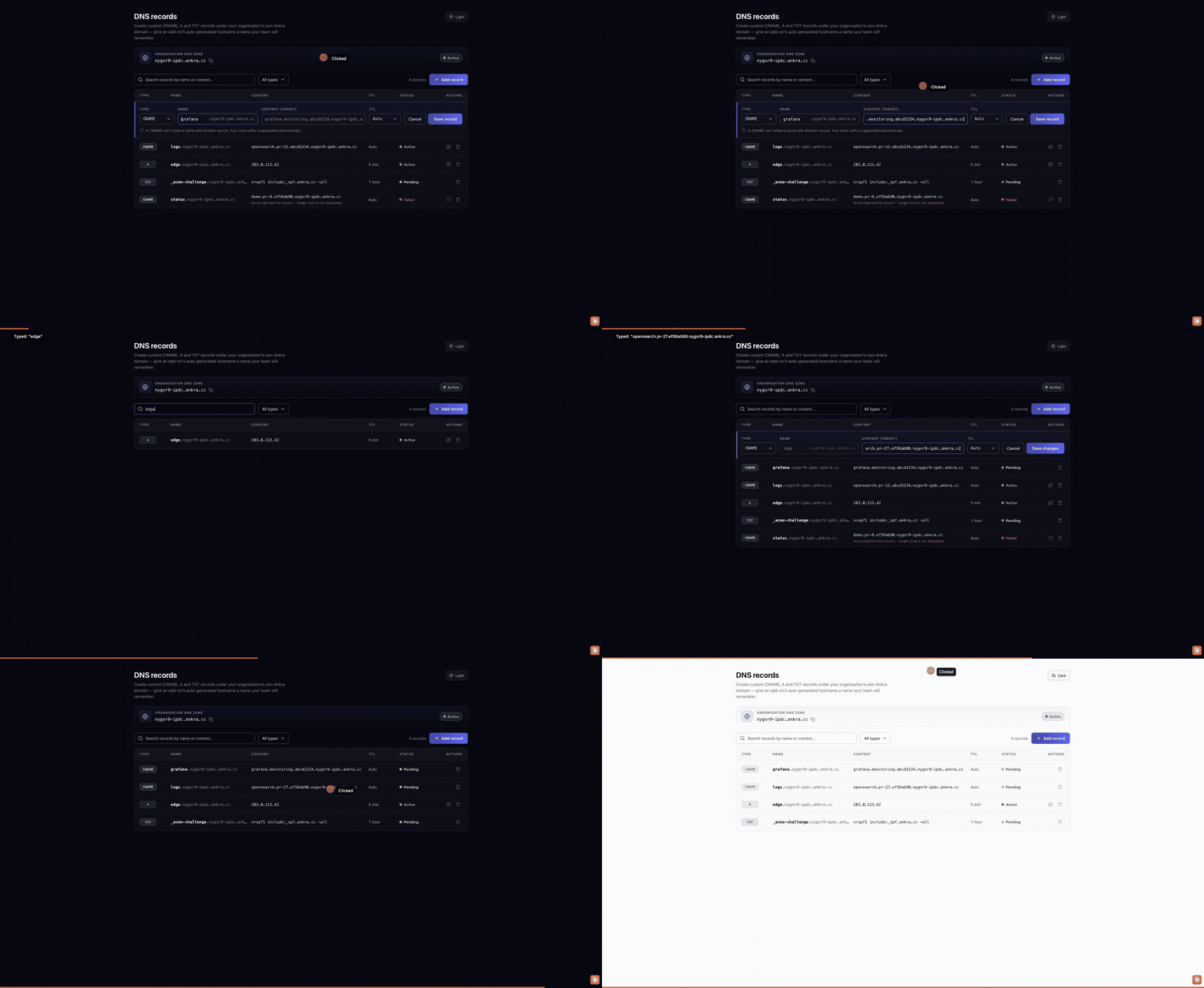 Go to **Organisation Settings** → **DNS records**.
Click **Add record**, enter a label (for example `logs`), pick a record type (CNAME, A, or TXT), enter the target, and choose a **TTL** (Auto, or 1 minute up to 1 hour). Your organisation's zone is appended to the label automatically.
New records provision asynchronously and show as **Pending** until the record is live in DNS (**Active**), or **Failed** with the reason if provisioning didn't succeed.
Use the row actions to **edit** a record's target and TTL in place, or **delete** it. Editing re-points the record and returns it to **Pending** until the change is live. To change a record's name or type, delete it and add a new one.
### Cluster domains
The same page lists every cluster's own delegated Ankra domain (`..`) with its provisioning state. **Remove** hands a cluster's domain back for teardown - the step required on every cluster before [switching the organisation's Ankra domain](/concepts/applications#the-preview-url) - and **Enable domain** brings a cluster (back) under the organisation's current Ankra domain; external-dns picks a newly enabled domain up on the cluster's next cloud-provider pass. The same pair exists in the CLI as `ankra cluster domain ` and `ankra cluster domain --remove`.
Any organisation member can view the record list; only administrators can add, edit, or delete records. A record's own zone must be active before a record can be created under it - new organisations provision this automatically, and the DNS records page shows the zone and its status at the top.
A CNAME record can never share a name with another record (standard DNS behaviour), and each name/type pair can only have one record.
***
## Danger Zone
Actions in the Danger Zone are destructive and cannot be undone. Proceed with extreme caution.
### Delete Organisation
Permanently remove your organisation and all associated data, including:
* All clusters (disconnected, not deleted from your infrastructure)
* All stacks and configurations
* All credentials and integrations
* All user memberships
Go to **Organisation Settings** → **General** and scroll to the **Danger Zone** section.
Click the **Delete** button. Only administrators see this option.
Type the organisation name exactly as shown to confirm, then click **Delete Organisation**.
Deleting an organisation does not delete resources from your Kubernetes clusters. It only removes them from the Ankra platform. Running workloads will continue to run.
***
## Related Settings
Define organisation-wide variables for use in stacks.
Configure SOPS encryption for your organisation.
Configure individual cluster settings.
Create custom CNAME, A, and TXT records under your organisation's Ankra subdomain.
Invite users and manage roles.
Go to **Organisation Settings** → **DNS records**.
Click **Add record**, enter a label (for example `logs`), pick a record type (CNAME, A, or TXT), enter the target, and choose a **TTL** (Auto, or 1 minute up to 1 hour). Your organisation's zone is appended to the label automatically.
New records provision asynchronously and show as **Pending** until the record is live in DNS (**Active**), or **Failed** with the reason if provisioning didn't succeed.
Use the row actions to **edit** a record's target and TTL in place, or **delete** it. Editing re-points the record and returns it to **Pending** until the change is live. To change a record's name or type, delete it and add a new one.
### Cluster domains
The same page lists every cluster's own delegated Ankra domain (`..`) with its provisioning state. **Remove** hands a cluster's domain back for teardown - the step required on every cluster before [switching the organisation's Ankra domain](/concepts/applications#the-preview-url) - and **Enable domain** brings a cluster (back) under the organisation's current Ankra domain; external-dns picks a newly enabled domain up on the cluster's next cloud-provider pass. The same pair exists in the CLI as `ankra cluster domain ` and `ankra cluster domain --remove`.
Any organisation member can view the record list; only administrators can add, edit, or delete records. A record's own zone must be active before a record can be created under it - new organisations provision this automatically, and the DNS records page shows the zone and its status at the top.
A CNAME record can never share a name with another record (standard DNS behaviour), and each name/type pair can only have one record.
***
## Danger Zone
Actions in the Danger Zone are destructive and cannot be undone. Proceed with extreme caution.
### Delete Organisation
Permanently remove your organisation and all associated data, including:
* All clusters (disconnected, not deleted from your infrastructure)
* All stacks and configurations
* All credentials and integrations
* All user memberships
Go to **Organisation Settings** → **General** and scroll to the **Danger Zone** section.
Click the **Delete** button. Only administrators see this option.
Type the organisation name exactly as shown to confirm, then click **Delete Organisation**.
Deleting an organisation does not delete resources from your Kubernetes clusters. It only removes them from the Ankra platform. Running workloads will continue to run.
***
## Related Settings
Define organisation-wide variables for use in stacks.
Configure SOPS encryption for your organisation.
Configure individual cluster settings.
Create custom CNAME, A, and TXT records under your organisation's Ankra subdomain.
Invite users and manage roles.